Step 1: Click on the Images
Step 2: Click on search images to run
Step 3: Paste “n8nio/n8n” in the search bar and search

Step 4: Pull the first result of the search

Step 5: Run the downloaded image. A new dialogue box will open
Step 6: Set a name for your container, like “n8n-demo” or any name
Step 7: Under “Ports”, map host port 5678 to container port 5678
Step 8: Under “Volumes”, map your n8n_data directory
Step 9: Set Container path to /home/node/.n8n In the container
Step 10: Under “Environment”, add the following variables:
N8N_COMMUNITY_PACKAGES_ALLOW_TOOL_USAGE=true
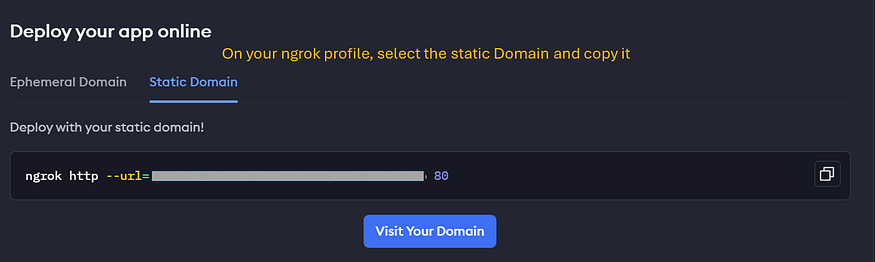
N8N_EDITOR_BASE_URL=https://your-ngrok-url.ngrok.app
WEBHOOK_URL=https://your-ngrok-url.ngrok.app
N8N_DEFAULT_BINARY_DATA_MODE=filesystem
GENERIC_TIMEZONE=Europe/Berlin (or your preferred timezone)